
Security cameras are your property’s first line of defense, but unexpected technical glitches can leave you in the dark. Whether your mobile app has stopped loading or your monitor is flashing an error, most surveillance issues can be resolved with a systematic check.
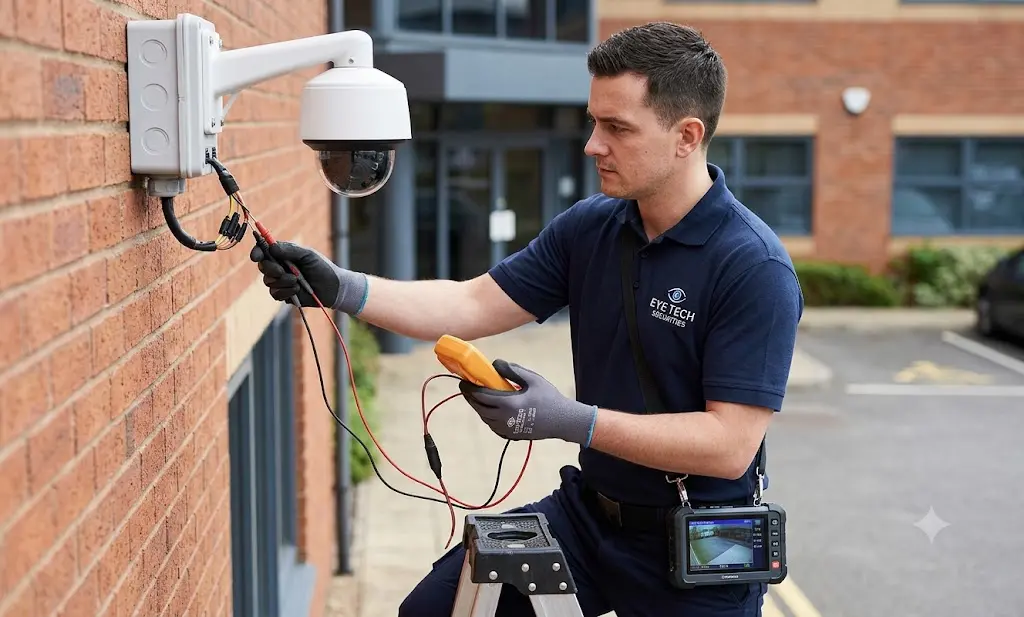
Use this professional troubleshooting checklist to quickly diagnose and fix the most common CCTV and DVR/NVR problems.
Part 1: Display and Video Feed Failures
1. The Screen Shows a 4/8/16 Grid, But All Boxes Say "No Video"
-
The Cause: The cameras have completely lost power, while the recorder is still functioning normally.
-
The Fix: Replace or repair the central Switch Mode Power Supply (SMPS) unit, as it distributes power to all connected cameras.
2. The Monitor is Completely Blank (No Grid Boxes Displayed)
-
The Cause: The recording unit itself isn't powering up or processing data.
-
The Fix: Test the system using a new, functional DVR/NVR power adapter. If the adapter is fine, the internal motherboard may be damaged.
3. Individual Cameras Going Black or Dropping Out
-
The Cause: A localized failure in the video connection, cable line, or camera hardware.
-
The Fix: Replace the BNC or Video Balun connectors first. If that fails, unmount the camera and test it next to the DVR using a short test cable. If it works there, the installed cable run is damaged; if it still fails, the camera hardware needs replacement.
4. Blurry, Foggy Video or Nighttime White Spots
-
The Cause: External lens obstructions or infrared (IR) reflection.
-
The Fix: Clean the outer glass housing with a microfiber cloth and gentle lens cleaner. Ensure nearby tree branches, cobwebs, or insects aren't reflecting IR light back into the lens sensor.
Part 2: Signal Quality and Hardware Alerts
1. Persistent Video Flickering or Rolling Lines
-
The Cause: Faulty terminations, degraded cables, or electrical interference.
-
The Fix: Swap out the BNC or Video Balun connectors. If the flickering returns after a few days, cross-test by swapping the position with a known working camera. If the problem persists on that same line, replace the video cable and ensure the route is separated from high-voltage electrical conduits.
2. The DVR/NVR is Making a Constant Beep Sound
-
The Cause: The system is alerting you to a storage error.
-
The Fix: Connect a known good power adapter to rule out voltage drops affecting the drive. Check both the SATA data and power cables internally. If the connections are secure but the beeping persists, the Hard Disk Drive (HDD) has failed and must be replaced.
3. No Playback Records (But No Beep Alarm)
-
The Cause: The recorder's internal system clock has reset, preventing it from indexing recent footage.
-
The Fix: Check the system time. If the date has defaulted back to 1970 or 2000, swap out the internal CMOS battery on the motherboard. If the clock is only off by a few days or months, correct it in the settings menu and recheck performance after 3–7 days.
Part 3: Connectivity and Port Errors
1. CCTV Status is "Offline" in Mobile App View
-
The Cause: Local network dropouts or improper IP assignment.
-
The Fix: Verify your property's internet connection, then reboot both the internet router and the DVR. If it remains offline, open the recorder's Network Configuration menu, enable DHCP to automatically fetch configurations, save the changes, and manually set the Primary DNS to 8.8.8.8 and the Alternate DNS to 8.8.4.4.
2. Live Feed Works on the TV/Monitor but Not on the Mobile App
-
The Cause: Channel display visibility restrictions within the mobile software configurations.
-
The Fix: Open the camera display configurations inside the mobile application settings and verify that the missing camera channels aren't hidden from active view.
3. Video Works on the Mobile App but Not on the Monitor/TV
-
The Cause: Blown display interfaces or faulty video cables.
-
The Fix: Swap out the HDMI cable or plug it into an alternate HDMI input port on the television. If the display remains blank across multiple screens, the NVR/DVR's physical HDMI output port is blown.
4. IP Cameras Displaying a "No Link" Error
-
The Cause: Dynamic IP address conflicts or network bandwidth exhaustion.
-
The Fix: Scan the local network to see if the camera's IP address automatically changed or conflicted with another device. If network paths are clear but the link drops, reduce the camera's bitrate and resolution within the camera backend to optimize bandwidth usage.
5. Locked Out / Forgotten Password on Hikvision DVR/NVR or "Device Added to Another Hik-Connect Account"
-
The Cause: Forgotten administrator password, default password expiration, lockout after incorrect attempts, or Hik-Connect mobile app stating "The device has been added to another account" when setting up a new phone or ownership.
-
The Fix: Eye Tech Securities provides official Hikvision Remote Password Reset & Hik-Connect Device Unbind Service for Rs. 450 / Device via Ultraviewer. Same Procedure & Charges: Desktop/Laptop needs to be in site and connected to the same network where the DVR/NVR/Camera is connected. Then should give access via Ultraviewer. Need Device Label Photo to be send to whatsapp. Payment should be made before itself. Contact 9962835944 to Reset or Unbind, or view our Hikvision Remote Password Reset & Hik-Connect Unbind Service Guide.
Professional Support & Optimization
While basic cabling adjustments and network resets can restore missing video feeds, complex hardware component replacements and systemic commercial diagnostics require specialized industrial gear.
-
To explore customized surveillance architecture for your property, visit our Home Page.
-
Looking to upgrade an outdated security configuration? Review system options on our CCTV Camera Pricing Packages Page.
-
Experiencing recurring hardware faults or need an on-site system inspection? Submit your requirements via our get-quote page for immediate expert assistance.
🔗 Looking for the Best CCTV Camera Installation Services in Chennai? We provide expert support for all brands.
👉 View our CCTV Camera Packages & Prices