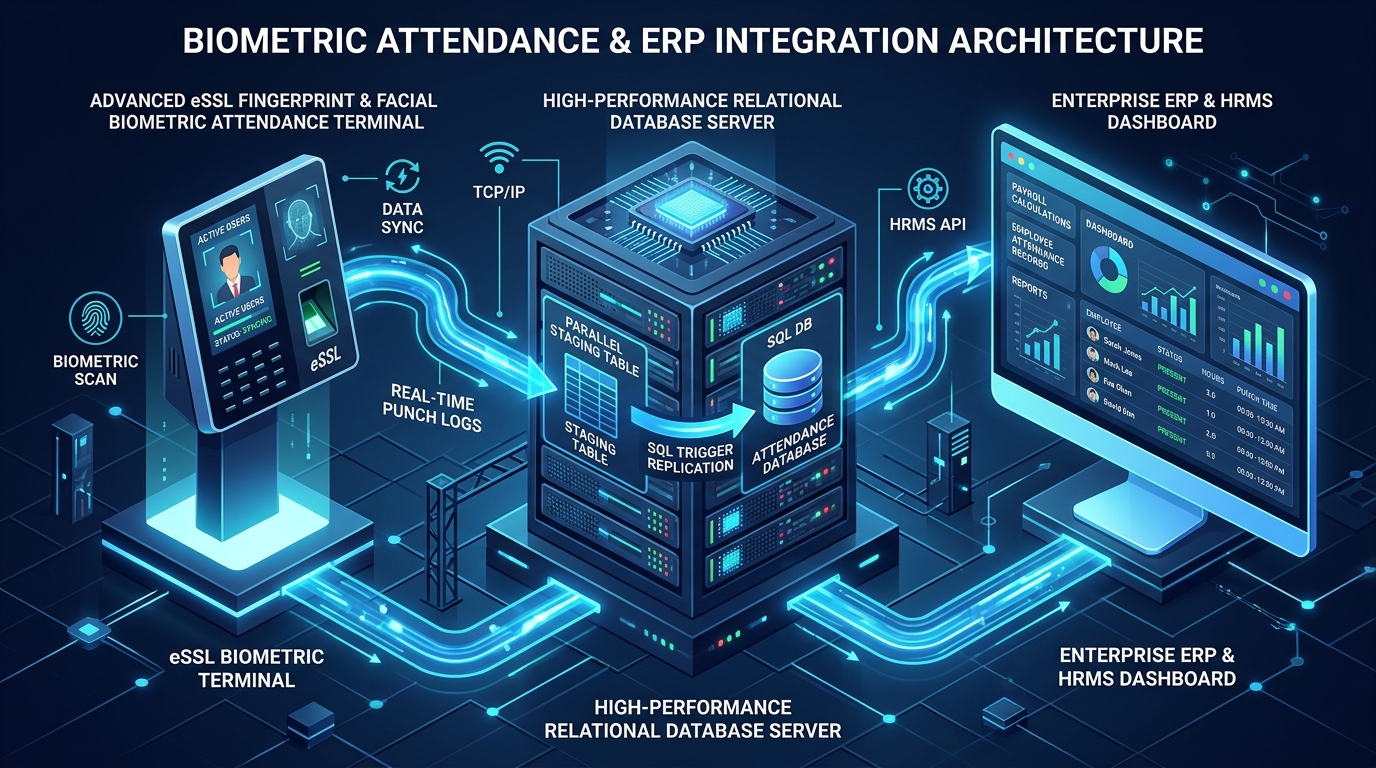
Step-by-step engineering guide to migrating eSSL eTimeTrackLite Desktop attendance software from Microsoft Access to Microsoft SQL Server. Learn how to extract DbFiles MDF & LDF, attach in SSMS, enable Mixed Mode authentication, and configure Database Settings without errors.
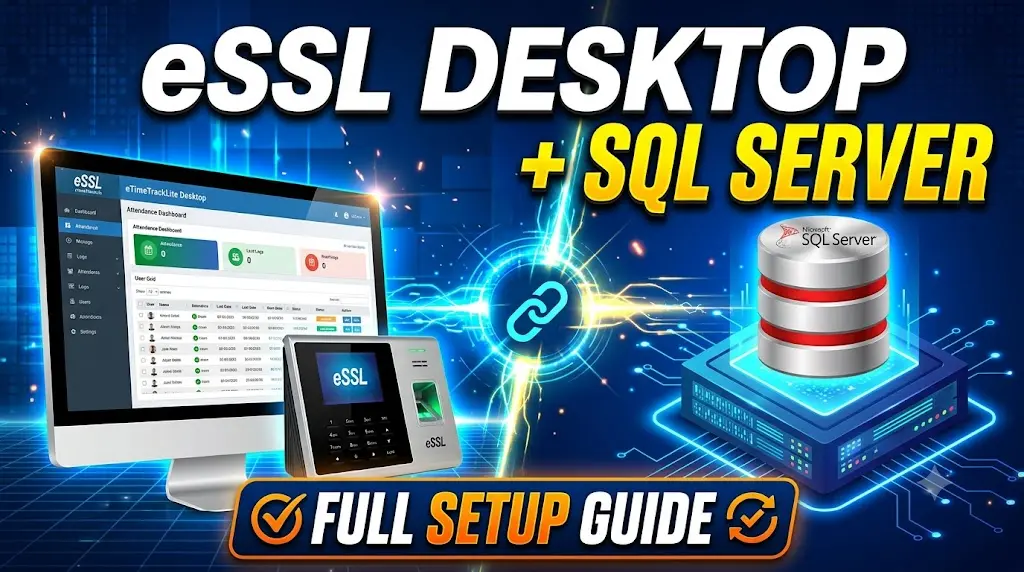
Click play above to stream the official walk-through video directly. Zero background scripts loaded on initial page visit.
Why Migrate from MS Access (.mdb) to Microsoft SQL Server?
By default, the eSSL eTimeTrackLite Desktop setup initializes with a local eTimeTrackLite.mdb Microsoft Access database. While suitable for 5–10 staff, Access suffers from a strict 2 GB size ceiling, file locking errors during simultaneous device punch polling, and severe risk of index corruption during sudden power outages. Connecting eTimeTrackLite to Microsoft SQL Server 2014/2019/2022 Express gives you enterprise reliability, 10 GB free database storage, high-speed query processing, zero database size limitations, and seamless parallel database synchronization into ERP and payroll systems.
Prerequisites & Software Downloads Checklist
Before starting the database connection procedure, ensure you have the following official software packages downloaded and installed on your Windows PC / computer:
- eSSL eTimeTrackLite Desktop 12.2 Setup: If not yet installed, you can download the 100% official setup archive directly from our eSSL Software Downloads Hub (eTimeTrackLite.zip ~70 MB).
- Microsoft SQL Server 2022 Express Edition: Download the official Microsoft installer directly from our Downloads Hub (SQL2022-SSEI-Expr.exe ~3.8 MB) or Microsoft’s website.
- SQL Server Management Studio (SSMS): Install SSMS (version 18 or 19) to manage, attach, and configure database logins.
-
Windows Administrator Privileges: Full administrative rights to access
C:\Program Files (x86)and modify Windows Services.
Step-by-Step Guide: Connecting eTimeTrackLite Desktop to SQL Server
Follow the 5 structured steps below. We have detailed every file path, permission setting, and authentication configuration required to ensure a 100% successful connection on your first try:
Locate the 2 Database Files (etimetracklite1_Data & etimetracklite1_Log)
File ExtractionThe pre-configured blank database structure for Microsoft SQL Server is bundled directly inside your downloaded eTimeTrackLite setup package. Extract the zip archive and navigate to the database template directory:
Inside this folder, you will see exactly two files:
etimetracklite1_Data.mdf(shown asetimetracklite1_Data• ~3,968 KB) — SQL Server Database Primary Data File containing all attendance schemas, tables, and stored procedures.etimetracklite1_Log.ldf(shown asetimetracklite1_Log• ~1,024 KB) — SQL Server Database Transaction Log File required for transactional recovery and integrity.
*Note: In Windows File Explorer, file extensions (.mdf/.ldf) may be hidden by default and appear simply as etimetracklite1_Data and etimetracklite1_Log.
Copy Both Files into Installed eTimeTrackLite Folder & Grant 'Everyone' Permissions
Directory Placement & Permissions
Copy both etimetracklite1_Data and etimetracklite1_Log and paste them into your active installed eSSL application folder on your C: drive:
Note: If installed on a 32-bit OS or custom directory, the path may be C:\Program Files\eTimeTrackLite\ or C:\eTimeTrackLite\.
eTimeTrackLite folder (or your database directory) → Properties → Security tab → click Edit → click Add → type Everyone → click OK → check Full Control → click Apply and OK. Adding Everyone with Full Control is the proven industry standard for eSSL database folders.
Configure SQL Server Authentication (Mixed Mode) & Enable SA Login
SQL Server Security SetupeTimeTrackLite Desktop communicates with SQL Server via standard SQL Authentication (username and password). Because SQL Server defaults to Windows Authentication only, you must enable Mixed Mode:
- Open SQL Server Management Studio (SSMS) and connect using Windows Authentication.
- In Object Explorer, right-click your Server Name (e.g.,
YOUR-PC\SQLEXPRESS) → select Properties. - Click the Security page on the left panel → Under Server authentication, select SQL Server and Windows Authentication mode → Click OK.
- In Object Explorer, expand Security → expand Logins → right-click sa → click Properties.
- In the General tab, enter and confirm a secure password (e.g.,
Essl@1234or your preferred password). - In the Status tab, ensure Permission to connect to database engine: Grant and Login: Enabled are selected → Click OK.
- Restart the SQL Server Service: Right-click your server instance name in SSMS → click Restart.
Attach the etimetracklite1_Data Database in SQL Server (SSMS)
Database AttachmentNow attach the copied database files into your active SQL Server instance:
- In SSMS Object Explorer, right-click the Databases folder → click Attach...
- In the "Attach Databases" dialog window, click the Add... button.
- Navigate to
C:\Program Files (x86)\eTimeTrackLite\→ select etimetracklite1_Data.mdf (oretimetracklite1_Data) → click OK. - Verify in the bottom pane ("database details") that both
etimetracklite1_Data.mdf(Data) andetimetracklite1_Log.ldf(Log) are listed with status Found. - Click OK to finalize the attach process.
Refresh the Databases folder in SSMS. You will now see etimetracklite1 (or eTimeTrackLite) listed with all underlying attendance tables (Employees, DeviceLogs_..., AttendanceLogs).
Configure Database Settings in eTimeTrackLite Desktop Software
Application Link & Test ConnectionLaunch the eTimeTrackLite Desktop application. On the initial Login prompt, perform the final configuration:
- On the software login window, click the Database Settings button/link located at the bottom.
- Under the Database Type / Database Provider dropdown, switch from MS Access to MS SQL (or Microsoft SQL Server).
- Fill in your SQL Server connection details accurately:
- Server Name: Enter
.\SQLEXPRESS,localhost\SQLEXPRESS, orYOUR-PC-NAME\SQLEXPRESS. - Database Name: Enter
etimetracklite1(oreTimeTrackLite— ensure this matches the exact database name shown in SSMS Object Explorer). - Authentication: Select SQL Server Authentication.
- Login / User Name: Enter
sa(or your custom SQL login). - Password: Enter the password you configured for the
saaccount in Step 3.
- Server Name: Enter
- Click the Test Connection button.
- You should immediately receive a success dialog: "Connection Established Successfully!"
- Click Save Connection (or Save & Apply) to store your settings.
essl and Password: essl (both lowercase). Once inside, you can register your biometric device IP and start syncing punches!
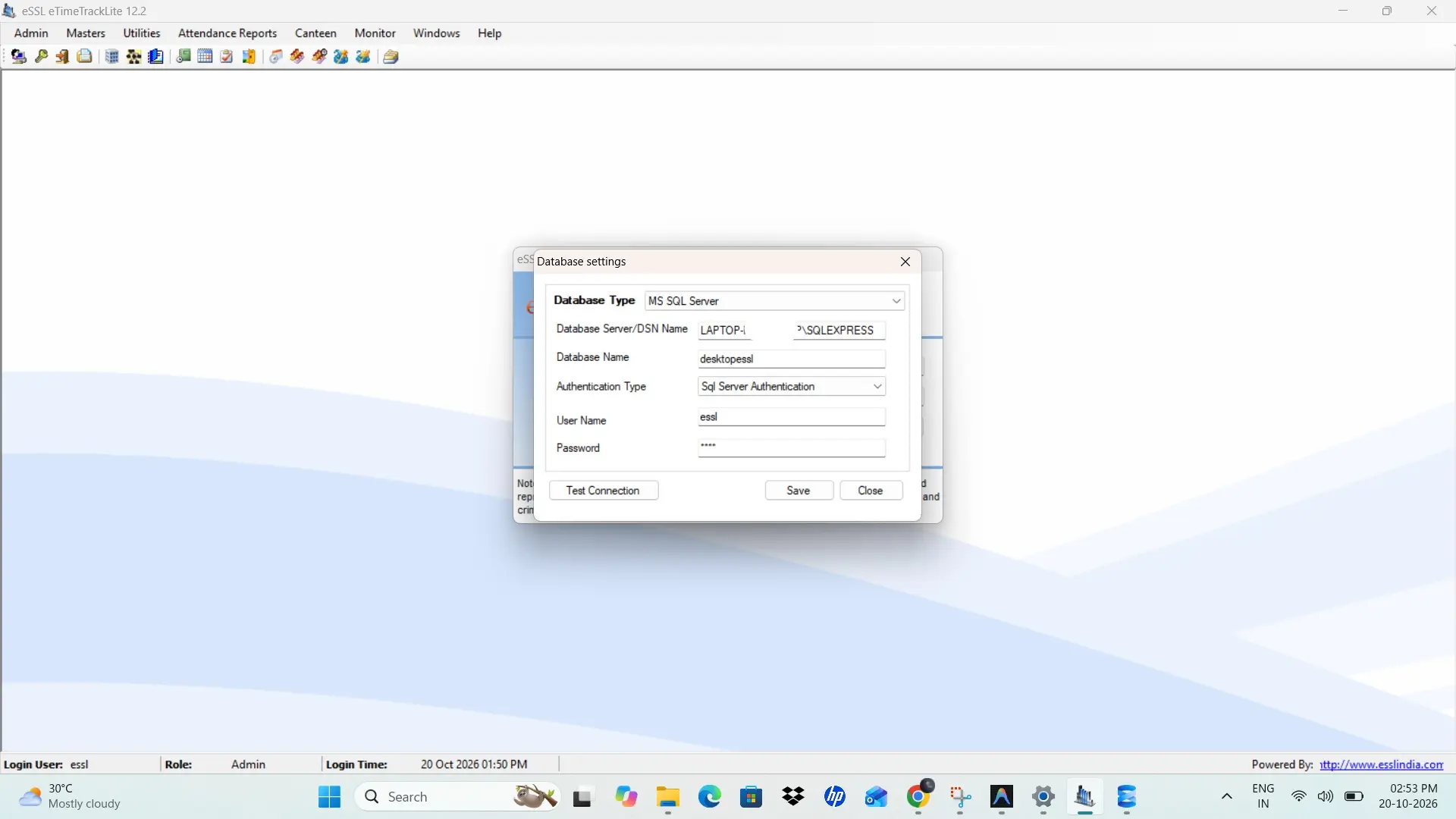
Live software interface: eSSL eTimeTrackLite Desktop 12.2 Database settings window configured for MS SQL Server connection.
Troubleshooting Common SQL Server Connection Errors
If your "Test Connection" fails or gives an error alert, check the diagnostic solutions below:
Error 1: "Cannot open database 'etimetracklite1' requested by the login. The login failed."
Reason & Fix: The sa user does not have user-mapping rights to the newly attached database. Open SSMS → Security → Logins → right-click sa → User Mapping → check the box next to etimetracklite1 and check db_owner role membership → Click OK.
Error 2: "Operating system error 5: Access is denied" during Attach
Reason & Fix: Windows NTFS security permissions restrict the SQL Server engine from reading the database files in Program Files. Right-click the folder containing your MDF/LDF files → Properties → Security → Edit → Add Everyone → Check Full Control → Apply and OK.
Error 3: "A network-related or instance-specific error occurred while establishing a connection"
Reason & Fix: SQL Server service is stopped or TCP/IP protocol is disabled. Open SQL Server Configuration Manager → SQL Server Services → ensure SQL Server (SQLEXPRESS) and SQL Server Browser are Running. Under SQL Server Network Configuration → Protocols → set TCP/IP to Enabled → Restart service.
Error 4: "Cannot connect to .\SQLEXPRESS / Server does not exist or access denied"
Reason & Fix: The Microsoft SQL Server Windows service is not running on your computer, or the SQL instance name was mistyped in Database Settings. Press Windows + R, type services.msc and press Enter. Locate SQL Server (SQLEXPRESS), right-click, and select Start (or Restart). Then confirm in eTimeTrackLite Database Settings that the Server Name is entered accurately as .\SQLEXPRESS or localhost\SQLEXPRESS.
Need Genuine Software Licenses or Additional eSSL Utilities?
Connecting eTimeTrackLite Desktop to Microsoft SQL Server provides an ultra-stable, high-performance attendance tracking setup on your office PC. If you require genuine desktop license keys or want to explore other eSSL software resources:
- Need official genuine software activation? Purchase lifetime activation codes delivered within 5 minutes on WhatsApp: eSSL eTimeTrackLite Official License Keys (Desktop ₹1,000 / Web ₹2,500).
- Considering expanding to a browser-based web application with mobile attendance? Read our guide: eSSL eTimeTrackLite Desktop vs. Web Application Buyer's Guide.
- Locked out of your biometric machine menu? Use our free instant tool: eSSL Biometric Admin Master Password Generator.
Complete Security & Biometric Solutions in Chennai
Eye Tech Securities is an authorized dealer and installation partner for eSSL and ZKTeco biometric attendance and access control systems in Chennai. Looking for complete office turnkey setups? Explore our cost-effective Office CCTV Camera and eSSL Biometric Attendance Combo Packages (starting at ₹32,000 with 4 HD Cameras + Biometric attendance machine + software setup). Visit our Home Page for CCTV & Security System Installation in Chennai or discover eSSL Biometric Fingerprint & Face Recognition Terminals in Chennai.
🔗 Looking for the Best CCTV Camera Installation Services in Chennai? We provide expert support for all brands.
👉 View our CCTV Camera Packages & Prices
Stuck Connecting eTimeTrackLite with SQL Server?
Our certified database engineers provide remote AnyDesk / UltraViewer installation and SQL database configuration across Chennai and all of India. We handle SQL engine installation, database attachment, sa user credentials, firewall ports, and machine log synchronization with a 100% money-back guarantee.
Frequently Asked Questions (FAQ)
eTimeTrackLite.zip package, open the folder eTimeTrackLite → DbFiles → MS SQL Server 2005. You will find exactly two files: etimetracklite1_Data.mdf (shown as etimetracklite1_Data • Primary Data File ~3,968 KB) and etimetracklite1_Log.ldf (shown as etimetracklite1_Log • Transaction Log File ~1,024 KB).
C:\Program Files (x86)\eTimeTrackLite), open Properties → Security tab → click Edit → click Add → type Everyone → check "Full Control" → click Apply and OK. Adding Everyone with Full Control is the proven practical solution. Then re-attach in SSMS.
sa user, set a password, ensure the login status is "Enabled", and restart the SQL Server service.
essl and the default password is essl (both in lowercase). After logging in for the first time, it is strongly recommended to change your admin password under Master → Company Settings.
sa user login. Once the database is attached and configured in eTimeTrackLite Database Settings, the SQL Server database engine runs automatically in the background as a Windows service. You only need to open the eTimeTrackLite Desktop application for your daily employee attendance tracking and device synchronization.